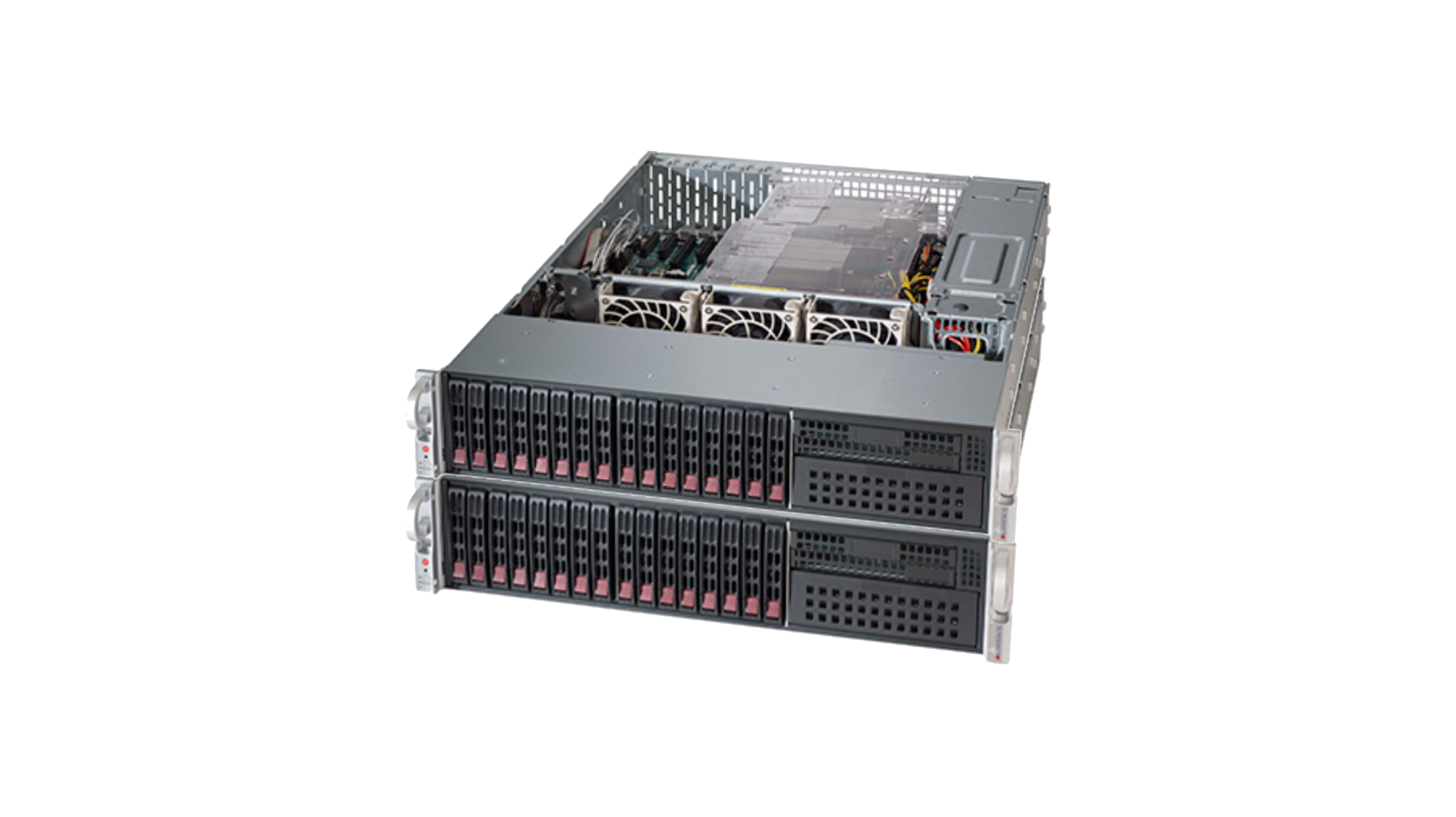
A few months ago a friend of mine was offloading some old(er) 2U Supermicro Servers. I decided to grab a couple and turn them into a 2-node ESXi cluster!
Part 1 of this series will focus on specs, cabling, and IPMI configuration.
Specs
- Supermicro 2U, 16 Bay chassis
- Motherboard: Supermicro X9DRW-7TPF+
- CPU: Dual Intel Xeon E5-2695v2 12C/24T @ 2.40GHZ base
- RAM: 328GB Registered-ECC (10 16GB DIMM’s per CPU)
- Network: Dual 10GB SFP+ (Intel 82599EB Controller)
- HBA: Adaptec RAID 71605
- Drives: 14 Seagate 10K SAS & 2 Intel 128GB SSD DC S3500 Series (w/ MLC flash).
- Boot Drive: 256GB Samsung SSD
Cabling
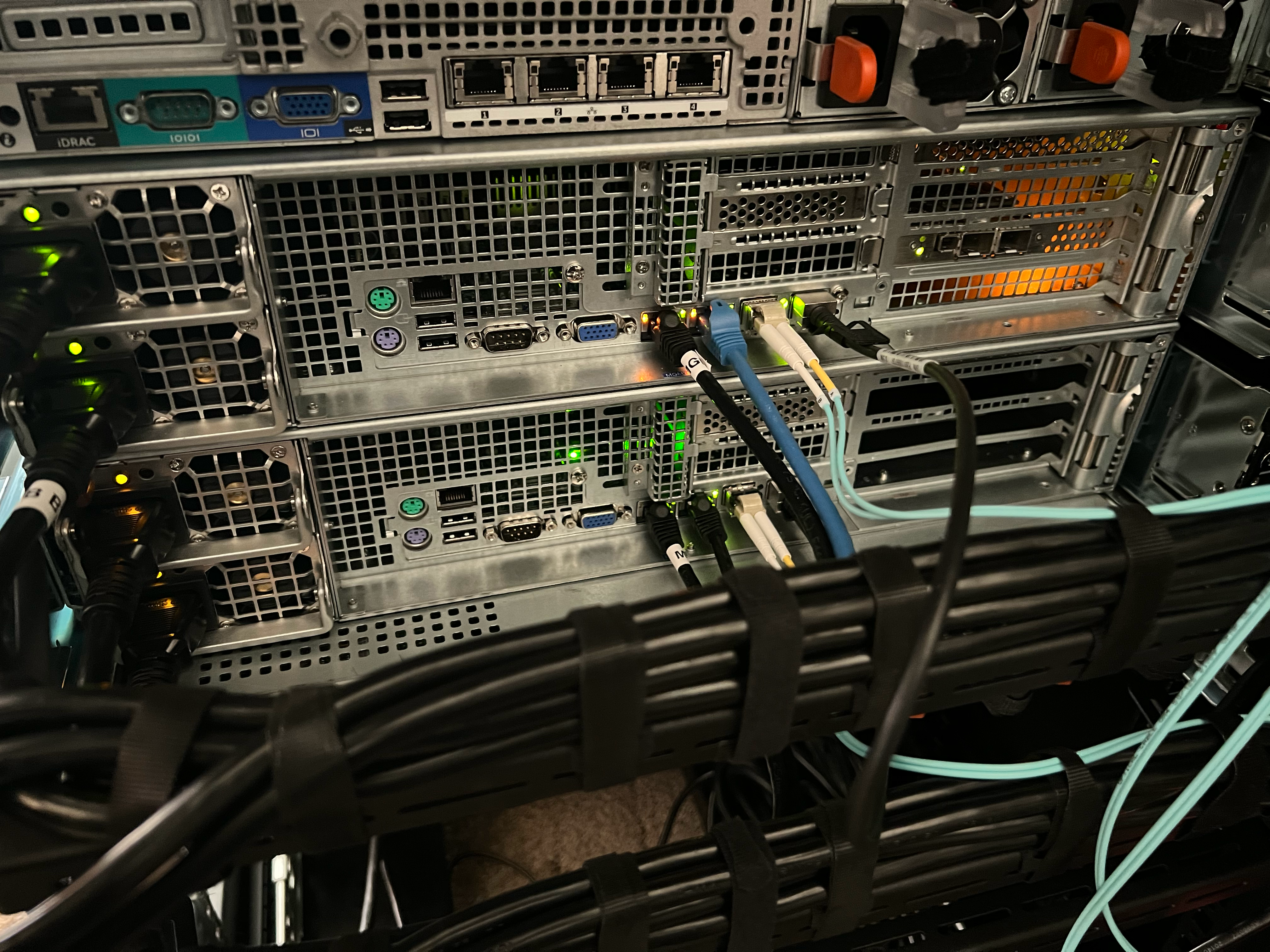
I tried to keep the cabling as simple as possible. From left to right…
- IPMI
- ESXi Management Interface
- 10GbE uplink to Edgeswitch 48-lite (VM Traffic)
- 10GbE DAC to the other Supermicro sever (vSAN & vMotion)
IPMI Configuration
Even though these servers sit 5 feet away from my desk, I still wanted to be able to manage them without having to use a physical KVM. The first thing to do is configure the IPMI interfaces.
On my Edgerouter-4 I have a virtual interface configured for the Out-of-Band (OOB) network on vlan 2286
ubnt@er-4# show interfaces ethernet eth1 vif 2286
 address 10.1.2.1/26
 description OOB
I also have a DHCP server setup to hand out leases on the OOB network. Trust me, it’s way easier than fumbling around with static IP’s.
ubnt@er-4# show service dhcp-server shared-network-name OOB
 authoritative disable
 subnet 10.1.2.0/26 {
     default-router 10.1.2.1
     dns-server 10.1.3.4
     lease 86400
     start 10.1.2.3 {
         stop 10.1.2.10
     }
 }
The IPMI interfaces on the back of each server are connected to interfaces 0/9 and 0/10 on my Edgeswitch 48 lite. The switchport configs look like this:
interface 0/9
description 'Top IPMI'
ip dhcp snooping trust
ipv6 dhcp snooping trust
mtu 9216
vlan pvid 2286
vlan participation exclude 1,2280,2282-2285,2287,2290-2294
vlan participation include 2286
!
interface 0/10
description 'Bottom IPMI'
ip dhcp snooping trust
ipv6 dhcp snooping trust
mtu 9216
vlan pvid 2286
vlan participation exclude 1,2280,2282-2285,2287,2290-2294
vlan participation include 2286
exit
Now each server is pulling a DHCP lease!
ubnt@er-4:~$ show dhcp leases
IP address      Hardware Address   Lease expiration     Pool
----------      ----------------   ----------------     ----
10.1.2.3        XX:XX:XX:XX:XX:26  2021/12/12 05:51:35  OOB
10.1.2.4        XX:XX:XX:XX:XX:a2  2021/12/12 05:51:35  OOB
Now that the IPMI network is configured, I can use ipmitool to manipulate and also get information from the servers. Here are some examples:
admin@OrganizedChaos> ipmitool -I lanplus -H 10.1.2.3 -U ADMIN -P ADMIN chassis power status
Chassis Power is off
admin@OrganizedChaos> ipmitool -I lanplus -H 10.1.2.3 -U ADMIN -P ADMIN chassis bootparam set bootflag force_bios
Set Boot Device to force_bios
admin@OrganizedChaos> ipmitool -I lanplus -H 10.1.2.3 -U ADMIN -P ADMIN chassis power on
Chassis Power Control: Up/On
admin@OrganizedChaos> ipmitool -I lanplus -H 10.1.2.3 -U ADMIN -P ADMIN sdr type Temperature | grep CPU
CPU1 Temp        | 01h | ok  |  3.1 | 44 degrees C
CPU2 Temp        | 02h | ok  |  3.2 | 52 degrees C
admin@OrganizedChaos> ipmitool -I lanplus -H 10.1.2.3 -U ADMIN -P ADMIN sdr type "Power Supply"
PS1 Status       | C8h | ok  | 10.1 | Presence detected
PS2 Status       | C9h | ok  | 10.2 | Presence detected
There are 2 choices for gaining “KVM-like” access to the servers. The first option is a Java Virtual KVM client available, but using it is clunky and requires downloading a java applet every time I need to use it (It also requires a few overrides in the Java security control panel). The second option is the Serial-Over-LAN (SOL) console. Since the SOL console is not enabled by default, I had to change a couple of BIOS settings to get it working:
- Advanced -> Super IO Configuration -> Serial Port 2 Configuration -> Serial Port 2 Attribute [SOL]
- Advanced -> Serial Port Console Redirection -> COM2 Console Redirection [Enabled]
Now I can power the server on, wait a few seconds, and then connect to the SOL console.
admin@OrganizedChaos> ipmitool -I lanplus -H 10.1.2.3 -U ADMIN -P ADMIN chassis power on
Chassis Power Control: Up/On
admin@OrganizedChaos> ipmitool -I lanplus -H 10.1.2.3 -U ADMIN -P ADMIN sol activate
Works like a charm; I have full access to the server without having to plug in a monitor and keyboard!

In part 2 I will install ESXi, configure the ESXi management network, and install the Adaptec drivers.